

Free DVD to MP4 Converter
Transfer DVDs to MP4, MKV, AVI and more digital formats. Upscale DVDs to 1080P/4K MP4 files
- Convert DVDs to MP4 to a hard drive or USB flash drive for free
- Get rid of bulky disc cases and digitize piles of DVD content
- Remove/extract subtitles or audio tracks from DVD files
- Break DVD region codes to achieve region-free playback
- Upscale DVD SD resolution (480P/576P) to 1080P/4K
 Zero CostLossless ConversionHigh Comp. RatioExtract Materials

 Switch to Mac Version
 Switch to Windows Version
- Features
- User Guide
- FAQ
- Tech Spec
-
 Any Video Converter Free
 -

Why Convert DVDs to MP4 | 4 Key Features
Free without limitations, extract DVD audio tracks/subtitles, reduce file size. This DVD to MP4 converter is all-powerful
DVD to MP4/MKV/AVI
DVD to MP4 allows for wireless streaming across all your devices. DVD to MKV preserves all audio tracks and subtitles from the original disc. Many more digital formats await you, all for free!
Remove/Extract DVD Audio & Subtitles
The converted MP4/MKV/AVI files can still be viewed with the audio/subtitles switched at any time, just like on DVD. You can also remove the audio/subtitles if you don't need them. It's all up to your preference.

Free Up Storage Space
Save physical and digital storage space. H.264/H.265 encoding reduces DVD size to around 1GB, significantly saving hard drive space. Hundreds of movies can be stored on a portable hard drive the size of a palm.

Prevent DVD Disc Rot
Convert DVDs to digital files for easy backup (to the cloud, NAS, or hard drive). Your video content remains safe even if the original disc is damaged or lost.

What Sets this DVD to MP4 Converter Apart | 6 Highlights

Video Editing
Trim, merge, crop, or add watermarks or subtitles to video files.

High-Speed Ripping
GPU acceleration significantly reduces conversion and waiting time.

Enhance Quality
Upscale from 480P to 1080P, optimize color/faces, and reduce noise.

High Compatibility
The converted digital files can run perfectly on various media players.

Instant Playback
No need for a lengthy DVD boot process; simply double-click the MP4 file to watch.

Video Sharing
Easily upload and share DVD content to social media in MP4 format.
Step by Step Guide | Transfer DVD to MP4 for Free
Step 1
Add DVD Disc
Simply click the 'Add DVD Disc' in the 'Format Convert' tool and select your DVD drive.
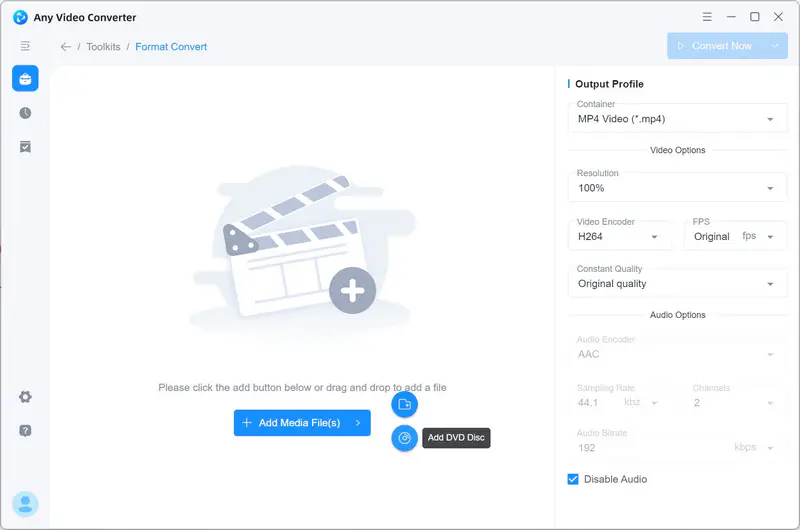
Simply click the 'Add DVD Disc' in the 'Format Convert' tool and select your DVD drive.
Step 2
Choose MP4 Format
Choose MP4 as the output format or other formats for devices. You can also add individual audio/subtitle files or delete unwanted audio/subtitle files in the drop-down track bar.
In the 'Output Profile' section, You can adjust other output parameters.
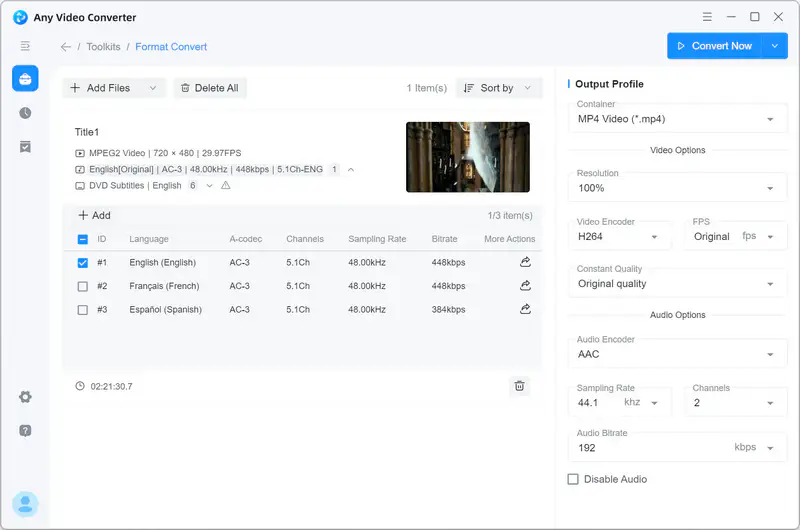
Choose MP4 as the output format or other formats for devices. You can also add individual audio/subtitle files or delete unwanted audio/subtitle files in the drop-down track bar.
In the 'Output Profile' section, You can adjust other output parameters.
Step 3
Convert DVD to MP4
After all the setting is done, you can click the 'Convert Now' button to transfer DVD to MP4.
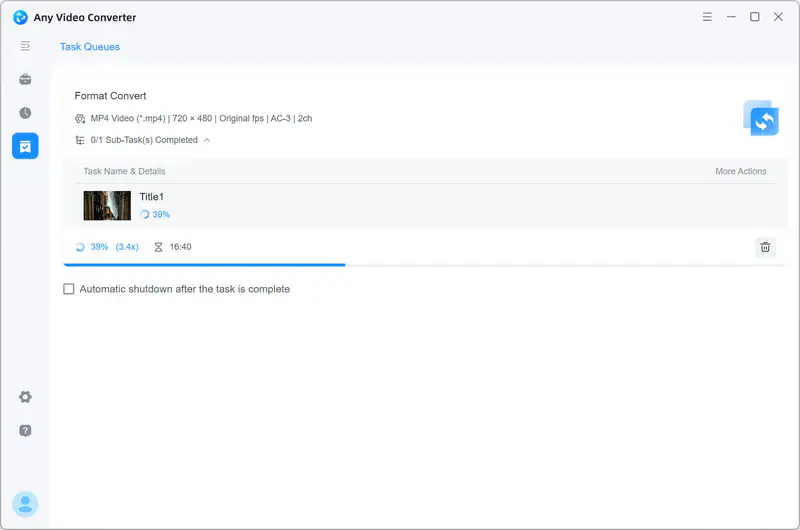
After all the setting is done, you can click the 'Convert Now' button to transfer DVD to MP4.
Falling into DVD to MP4 Converter
A high-efficiency solution with zero cost. Give you a safe, worry-free, and editable DVD to MP4 file.

FAQs about DVD to MP4 Converter
How to rip DVDs with Handbrake?
Handbrake is a free and open-source video conversion tool. The steps to rip DVDs using Handbrake are as follows (for Windows system):
Step 1: Download and install Handbrake.
Step 2: Insert the DVD into your computer's optical drive. After opening Handbrake, click 'Source Selection' and then click your DVD drive. Handbrake will begin scanning.
Step 3: After scanning is complete, you can click the 'Title' drop-down menu to manually select each episode for conversion.
Step 4: In the Presets section, select the resolution and device. DVDs are usually in 480P or 576P. Selecting the 1080P will not improve the quality, but it will ensure compatibility.
Step 5: Finally, set your output parameters according to the provided options, then click 'Browse' in the 'Save As' section at the bottom to select the location where you want to save the video file and name the file. Click the green 'Start Encode' button at the top to begin ripping the DVD to MP4.
⚠️ Note: Most commercial DVDs have CSS encryption. Handbrake cannot crack the encryption.
How to convert DVD video to MP4 online for free?
CloudConvert and Zamzar are relatively reliable online DVD to MP4 converter. Since DVD files (especially in .VOB format) are typically large, and online DVD converters have file size limitations, the following method is better suited for handling small DVD clips or unencrypted DVD content.
Step 1: Insert the DVD into your computer and find the 'VIDEO_TS' folder.
Step 2: Visit CloudConvert, click 'Select File', and upload the .VOB file. Then select MP4 as the output format. CloudConvert also allows you to set parameters, which you can customize according to your preferences.
Step 3: Click the 'Convert' button. It will begin converting on the server. Once the conversion is complete, click the 'Download' button to save the MP4 file to your local computer.
However, free online DVD to MP4 converters do not perform a complete conversion process. They simply extract and transcode the VOB video files from the DVD. A complete DVD video includes '.VOB' files, '.IFO' files, and '.BUP' files. Converting only VOB video files to MP4 may result in the loss of audio tracks, subtitles, and chapters.
How do I convert a DVD to MP4 on Mac?
You can use Any Video Converter. However, before the DVD to MP4 conversion, you'll need an external USB drive that supports macOS to insert the DVD.
Step 1: After inserting the DVD, open Any Video Converter on your Mac and add your DVD disc.
Step 2: In the 'Output Profile' section, choose MP4 as the output format or other formats for devices.
Step 3: Click 'Convert Now' to start converting a DVD to MP4.
What are the best DVD to MP4 converter software programs (ideally with subtitles)?
Undoubtedly, Handbrake is a recognized excellent DVD to MP4 converter. It's free, feature-rich, and user-friendly, even for beginners. You can easily use Handbrake to transfer DVDs to MP4.
Another option is Any Video Converter, which has been deeply involved in the video conversion field for many years and has a wide user base. It offers great flexibility in handling DVD subtitles.
By the way, VLC is also a powerful tool. After DVD to MP4 conversion, you can directly play and watch the MP4 file in the program.
How can I transfer movies from a DVD to a USB flash drive?
If your DVD is not encrypted, you can directly copy the DVD (VIDEO_TS) to a USB flash drive and then open VLC on your computer to play the DVD file.
However, to ensure the movie plays 100% smoothly, it is recommended that you first use Any Video Converter to convert the DVD to MP4 before exporting it to a USB flash drive. Also, make sure the USB drive is formatted as 'exFAT', otherwise the exporting process may fail.